Byte-first workflow
Choose 100 KiB, 200 KiB, or 500 KiB as the outcome you need before evaluating visual quality.
File size first
Set a practical byte budget, then let the editor find the closest quality level. It is a direct way to make images fit upload limits without sending a file away.
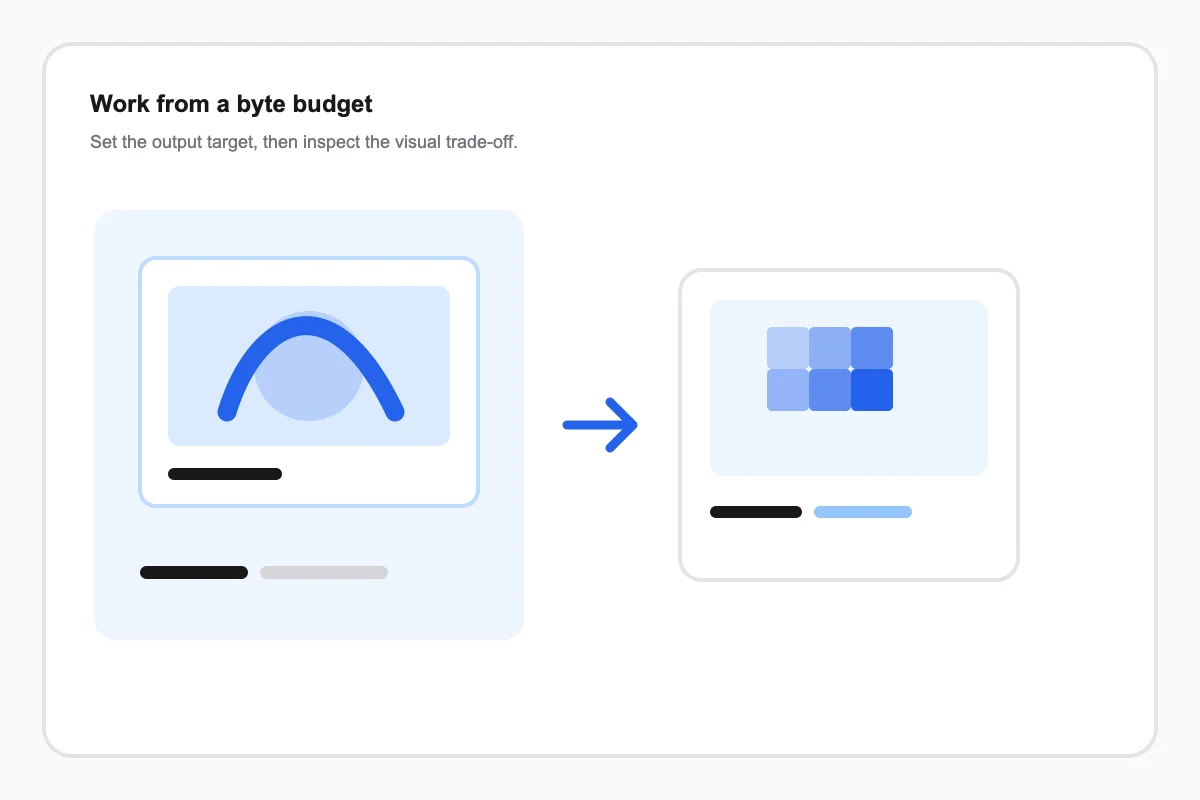
No account, watermark, or upload queue. The file never leaves your browser.
Waiting for an image
An image quality reducer is useful when an upload accepts a certain file size, not a certain quality percentage. The target-size control searches available JPEG or WebP quality levels and returns the closest local result.
A target is an aim, not a promise of an exact byte count. Source content, dimensions, format, and browser encoding all affect the final result.
Every control changes a different kind of image loss, so you can choose the trade-off instead of guessing.
Choose 100 KiB, 200 KiB, or 500 KiB as the outcome you need before evaluating visual quality.
The editor tests a limited set of encoder settings so the browser remains responsive.
Auto mode chooses WebP for PNG sources with transparency and JPEG for typical photographic sources.
Choose a realistic size budget, look at the downloaded-size estimate, then lower dimensions only when the output still exceeds your visual tolerance.
Start with the target closest to the actual platform limit, leaving room for an attachment or message wrapper.
Read the source and export bytes together; the percentage saved makes the trade-off visible.
If text or a face breaks first, raise quality or reduce dimensions more gradually.
Start from a known outcome, then change one control at a time while the original stays visible.
Choose a starting point based on the result you need, then inspect the detail that matters before exporting.
A strict form limit
Start with
100 KiB
Watch for text and small ui detail.
A web content image
Start with
200 KiB
Watch for gradients and image dimensions.
An email-friendly attachment
Start with
500 KiB
Watch for downstream client compression.
Transparency
Start with
Auto / WebP
Watch for whether the receiving platform supports webp.
Use the focused guide when the next image needs a different kind of loss.