USE CASE 01
Web placeholders
Start at Web 200 KB, then choose the smallest readable result.
Compress, pixelate, and deliberately ruin images without sending them anywhere. Choose a preset, see the byte count, download the version you mean to make.
START WITH A PURPOSE
THE WORKSPACE
Local browser processing. No account, watermark, or upload queue.
JPG, PNG, or WebP up to 25 MiB. It stays on your device.
Waiting for an image
01 / WHAT THIS SOLVES
A smaller image and a low-quality image are not always the same thing. Sometimes you need a file that fits an upload limit. Sometimes you need the unmistakable crunch of a heavily recompressed image. This tool lets you decide which data to lose and see the trade-off before you export.
It is for intentional degradation, not smart compression that tries to hide every change.
02 / KEY CAPABILITIES
03 / HOW TO USE IT
There is no hidden optimisation step. Pick an image, pick the type of damage you want, inspect the result, and export it.
Drop, choose, or paste a JPG, PNG, or WebP image.
Start from a preset, then tune quality, size, and distortion.
Read the byte count and compare both frames before downloading.
04 / USE CASES
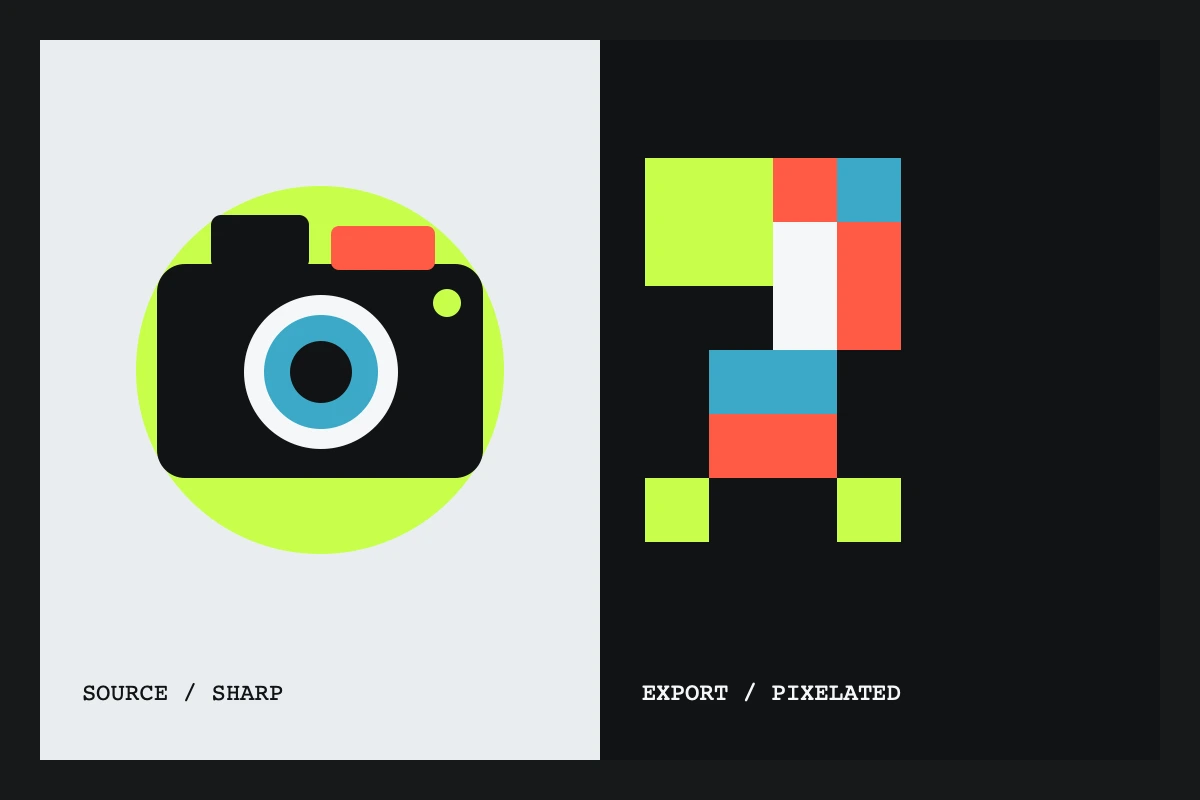
Start with a known outcome, then change one control at a time. This original still makes the visual trade-off concrete before you decide what to export.
USE CASE 01
Start at Web 200 KB, then choose the smallest readable result.
USE CASE 02
Use Quick Compress when a chat needs the image, not every pixel.
USE CASE 03
Use Pixelated when visible blocks are part of the composition.
USE CASE 04
Use Deep Fried when blown-out colour and compression are the joke.
05 / DECISION GUIDE
| IF YOU NEED | START WITH | WATCH FOR |
|---|---|---|
| A smaller upload | Web 200 KB | Fine text and skin detail |
| A recognisable quick copy | Quick Compress | The output size, not just quality |
| A visible low-fi effect | Pixelated | Whether blocks support the composition |
| An intentionally ruined meme | Deep Fried | Colour clipping and readability |
06 / FAQ
No. The file is decoded, adjusted, and exported in your browser. LowQualityImage does not send it to an application server.
PNG preserves every pixel, so it is often the wrong output for intentional quality loss. WebP can retain transparent areas while applying lossy compression.
Choose Web 200 KB for a concrete upload budget, Quick Compress for a subtle smaller image, and Deep Fried or Pixelated when the visible damage is the point.
No. Exported files are yours to use, with no account wall and no watermark added by this tool.
Your image never leaves your device.